How to Get a White Background on Your Passport Photo (3 Methods)
Get a perfect white background for your passport photo. Use a white wall, DIY with a bedsheet, or remove background digitally with AI. Free tips + $1 tool.
The US State Department requires a plain white or off-white background for all passport photos. No patterns, no shadows, no colored walls. If your photo has the wrong background, it will be rejected.
Here’s how to fix it—whether you’re taking a new photo or salvaging an existing one.
Why Passport Photos Need a White Background
The white background requirement exists for security and consistency:
- Facial recognition systems work better with uniform backgrounds
- Biometric scanning at borders relies on clear contrast between face and background
- Consistency across millions of passport photos makes verification easier
The State Department specifically states the background must be:
- Plain white or off-white
- No patterns, textures, or objects
- No shadows (on the background or face)
- Uniform color throughout
A photo taken against a beige wall, wood paneling, or even a light gray surface will likely be rejected.
Option 1: Take a New Photo Against a White Wall
The simplest solution—if you have a white wall available.
What You Need
- A plain white wall (no pictures, outlets visible, or textured paint)
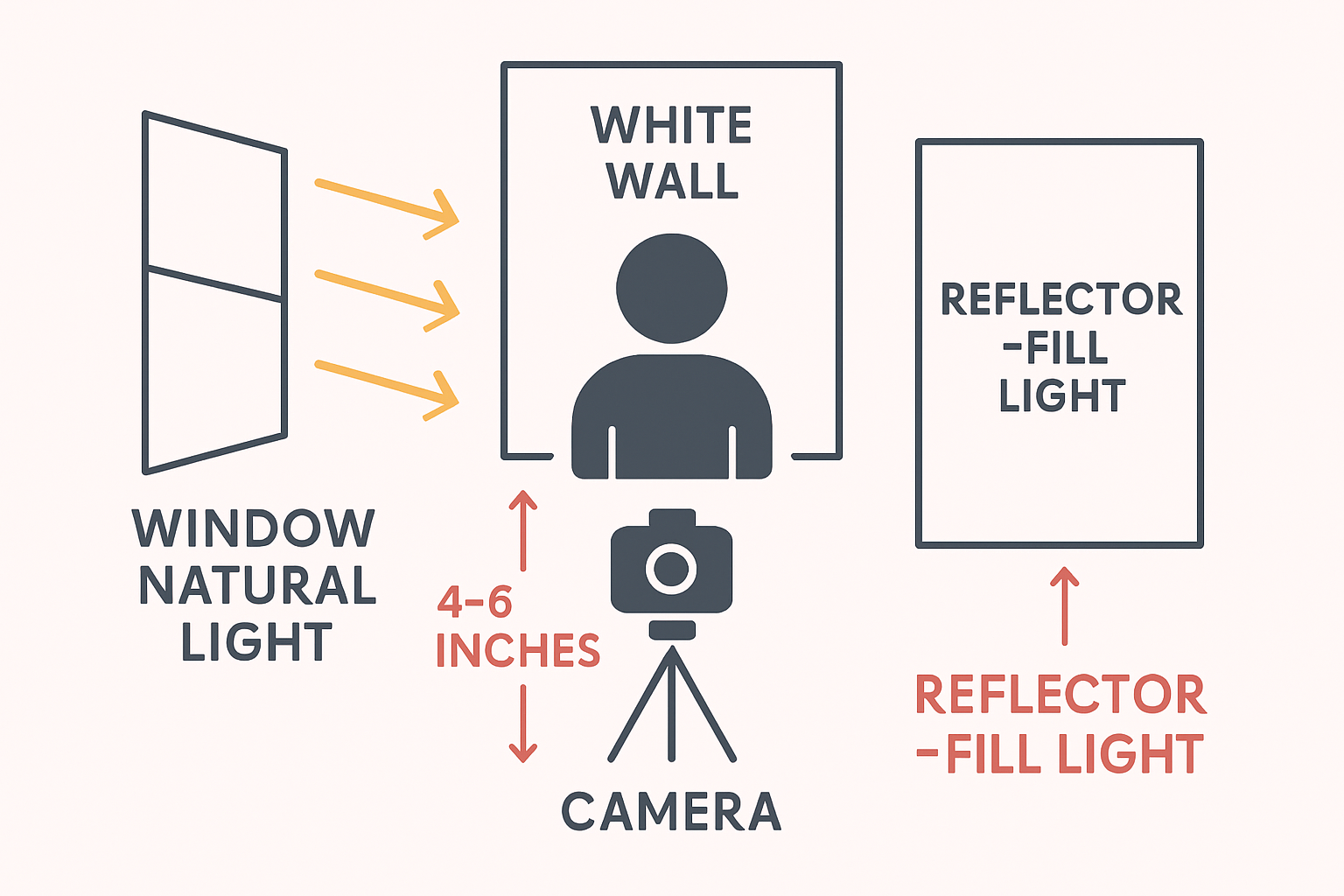
- Good lighting (natural daylight from a window works best)
- A smartphone or camera
- Someone to take the photo (or a tripod)
How to Do It
- Find the right wall — Look for a blank section without switches, outlets, or shadows from furniture
- Check the lighting — Face toward a window so light falls evenly on your face
- Stand 4-6 inches from the wall — Too close creates shadows; too far and the background may look gray
- Position yourself — Center your face, look directly at the camera, neutral expression
- Take multiple shots — Review and pick the one with the most even background
Common Problems
| Issue | Cause | Fix |
|---|---|---|
| Gray background | Wall is off-white or poorly lit | Increase lighting or find a whiter wall |
| Shadows on wall | Standing too close to wall | Step forward 4-6 inches |
| Uneven color | Mixed lighting (daylight + indoor lights) | Turn off indoor lights, use only natural light |
Option 2: Use a White Sheet (DIY Hack)
Don’t have a white wall? A white bedsheet or fabric works surprisingly well.
What You Need
- A plain white sheet (no patterns, wrinkles smoothed out)
- A way to hang it (tape, clips, or have someone hold it)
- Good lighting
- Camera or smartphone
How to Do It
- Hang the sheet — Use painter’s tape or clips to secure it flat against a wall or door
- Smooth out wrinkles — Iron if needed; wrinkles create shadows and uneven tones
- Light the sheet — Shine a lamp on the sheet to make it appear brighter and more uniform
- Stand in front — Keep 6-12 inches between you and the sheet to avoid shadows
- Take the photo — Same rules as the white wall method
Pro Tips
- Use a king-size sheet for more coverage
- Matte fabric works better than shiny/satin (less glare)
- Double up sheets if one is too thin and shows the wall color through
Option 3: Remove Background Digitally
Already have a photo but the background is wrong? You can remove and replace it digitally.
Generic Background Removers (remove.bg, Canva, etc.)
Tools like remove.bg can strip the background from any photo. However, for passport photos, they have limitations:
| Feature | Generic Tools | Passport-Specific Tools |
|---|---|---|
| Background removal | ✓ | ✓ |
| Correct white shade | Sometimes | ✓ |
| Head size validation | ✗ | ✓ |
| Eye position check | ✗ | ✓ |
| Compliance guarantee | ✗ | ✓ |
Generic tools might give you a white background, but they won’t tell you if your head is too big, your eyes are too low, or the crop is wrong. You could end up with a rejected photo anyway.
Passport-Specific Background Removal
Our tool is built specifically for passport photos:
- Upload any photo — Taken against any background
- AI removes the background — Replaces with compliant white
- Automatic validation — Checks head size, eye position, face centering
- Correct cropping — Outputs exact 2x2 inch dimensions
- Print-ready format — Download as 4x6 sheet with 6 photos
The difference: you get a photo that’s guaranteed compliant, not just a photo with a white background.
What Shade of White Is Acceptable?
The State Department says “white or off-white”—but how white is white enough?
Acceptable
- Pure white (#FFFFFF)
- Very light gray (#F5F5F5 or lighter)
- Warm off-white (#FFFAF0)
Not Acceptable
- Cream or beige
- Light blue, pink, or any tint
- Gray darker than #EEEEEE
- Any visible pattern or texture
When in doubt, go whiter. A pure white background will never be rejected for being “too white.”
Troubleshooting Background Issues
”My white wall looks gray in photos”
This is usually a lighting problem:
- Add more light to the scene
- Face toward a window
- Use a lamp to illuminate the wall behind you
- Avoid mixed lighting (daylight + tungsten bulbs)
“There’s a shadow behind my head”
You’re standing too close to the wall:
- Step forward 6-12 inches
- The shadow will fall on the floor instead of the wall
”The background has a yellow/blue tint”
Your camera’s white balance is off:
- Use natural daylight only
- If using a phone, tap on the white area to set exposure
- Or fix digitally with our tool
”I can see the wall texture”
Textured walls (orange peel, knockdown) show up in photos:
- Hang a smooth white sheet over the wall
- Or use digital background removal
Background Requirements for Other Documents
Different documents have different background requirements:
| Document | Background Color |
|---|---|
| US Passport | White or off-white |
| US Visa | White |
| UK Passport | Plain light gray or cream |
| Schengen Visa | White or light gray |
| Canada Passport | White or light-colored |
| India Passport | White |
Our tool supports 50+ document types and automatically applies the correct background for each.
Quick Decision Guide
Do you have a white wall?
├─ Yes → Take photo against white wall
└─ No
   ├─ Do you have a white sheet?
   │  ├─ Yes → Hang sheet and take photo
   │  └─ No → Take photo anywhere
   └─ Use digital background removal
No matter which path you take, digital background removal is the safest option—it guarantees a perfectly uniform white background without shadows.
Get Your White Background Now
Stop worrying about whether your background is white enough. Upload any photo and let our AI handle it:
- Works with any background (blue, gray, outdoors, even busy rooms)
- AI removes background and replaces with compliant white
- Validates head size, eye position, and all other requirements
- Download print-ready 4x6 template for $1
Ready to create your passport photo?
Get a compliant photo in 2 minutes for just $1. No signup required.