How to Crop & Resize a Photo to 2×2 Passport Size (Free Methods) 2026
Learn how to resize any photo to 2×2 inch passport size. Free methods using online tools, phone apps, and photo editors. Step-by-step guide.
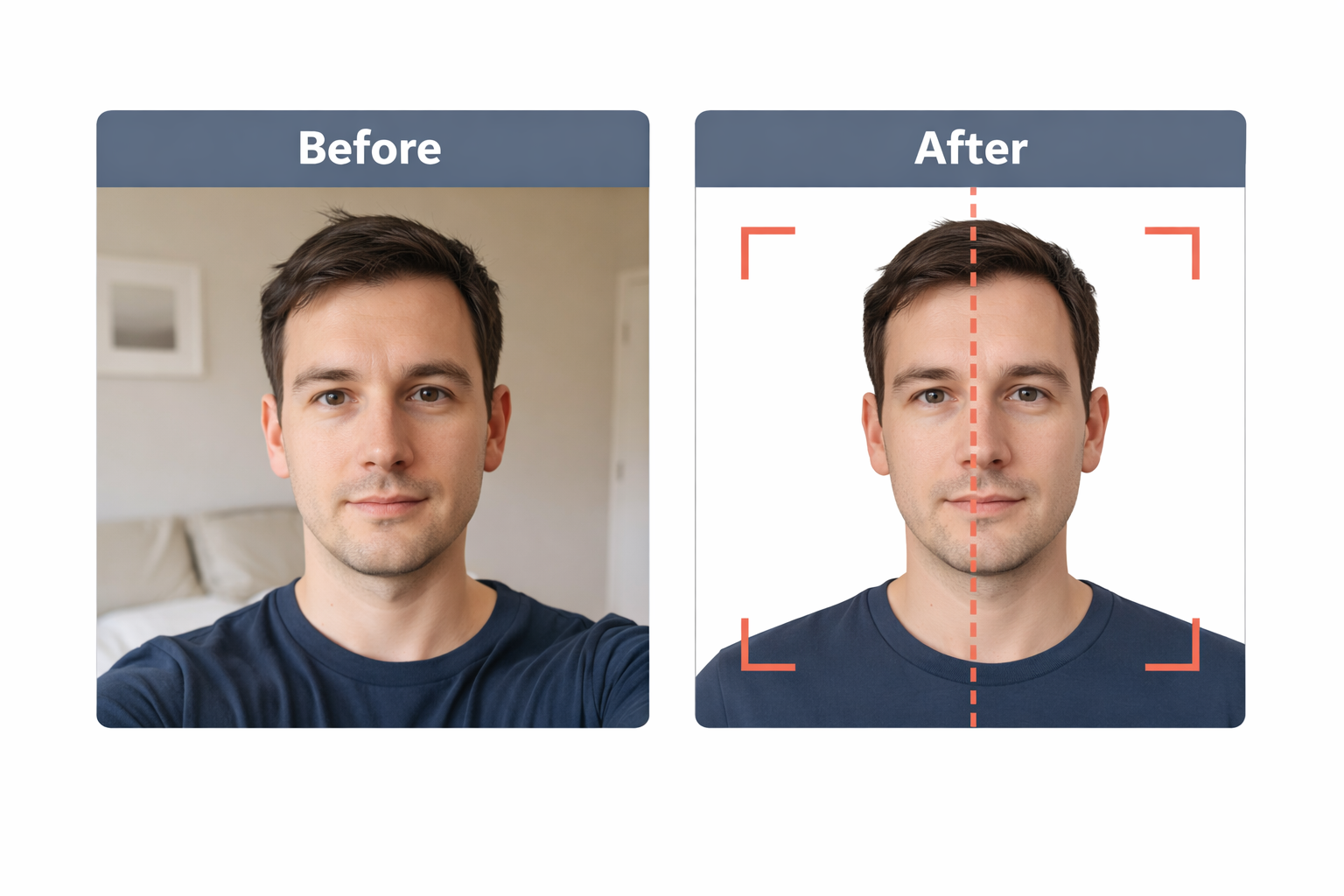
Got a photo you need to resize to 2×2 inch passport size? Whether it’s for a US passport, visa, or ID, here’s how to crop and resize it correctly using free tools.
What Size Is a 2×2 Passport Photo?
Before resizing, know the exact specifications:
- Physical size: 2 inches × 2 inches (51mm × 51mm)
- Digital size: 600×600 pixels (at 300 DPI)
- Aspect ratio: 1:1 (square)
- Head height: 1 to 1⅜ inches (25-35mm)
The photo must be perfectly square, and your head must be properly positioned within the frame.
Method 1: One Dollar Passport Photo (Easiest)
The fastest way to get a properly sized passport photo:
- Go to One Dollar Passport Photo
- Upload your photo
- The tool automatically:
- Crops to 2×2 inches
- Centers your head correctly
- Adjusts background to white
- Verifies all requirements
- Download your resized photo
Cost: $1 for the processed photo Time: 2 minutes
This method handles everything automatically — no manual cropping needed.
Method 2: Free Online Tools
Pixlr (Free)
- Go to pixlr.com/editor
- Open your photo
- Select the Crop tool
- Set aspect ratio to 1:1 (square)
- Position the crop area around your face
- Apply the crop
- Resize to 600×600 pixels
- Export as JPEG
Canva (Free)
- Go to canva.com
- Create new design → Custom size → 2×2 inches (or 600×600 px)
- Upload your photo
- Resize and position your face correctly
- Download as JPEG
Photopea (Free)
- Go to photopea.com (free Photoshop alternative)
- Open your photo
- Use Crop tool with 1:1 ratio
- Image → Image Size → Set to 600×600 pixels
- File → Export as → JPEG
Method 3: Phone Apps
iPhone Photos App
- Open photo in Photos app
- Tap Edit
- Tap Crop icon
- Select Square aspect ratio
- Position your face in center
- Tap Done
Note: This only crops — you’ll still need to resize to exactly 600×600 pixels for digital submission.
Android Google Photos
- Open photo in Google Photos
- Tap Edit
- Tap Crop
- Select Square (1:1)
- Adjust position
- Save
Dedicated Apps
- Passport Photo Maker (iOS/Android)
- ID Photo (iOS/Android)
- Passport Size Photo Maker (Android)
Most free apps add watermarks or have limitations. One Dollar Passport Photo is often easier for $1.
Method 4: Desktop Software
Adobe Photoshop
- Open your image
- Select Crop Tool (C)
- In options bar, set ratio to 1:1
- Draw crop area around face
- Press Enter
- Image → Image Size → 600×600 pixels, 300 DPI
- File → Export → Save for Web → JPEG
GIMP (Free)
- Open image in GIMP
- Image → Canvas Size
- Set both width and height to make square
- Tools → Transform → Crop
- Image → Scale Image → 600×600 pixels
- Export as JPEG
Preview (Mac)
- Open image in Preview
- Tools → Adjust Size
- Set width and height to 600 pixels
- Tools → Crop to Selection
- Save as JPEG
Getting the Head Size Right
Resizing to 2×2 isn’t enough — your head must be properly positioned:
- Head height: 1 to 1⅜ inches (50-69% of photo height)
- Eye position: Between 1⅛ to 1⅜ inches from bottom
- Head centered: Equal space on left and right
How to Check
After cropping, measure:
- If photo is 600 pixels tall, head should be 300-414 pixels
- Eyes should be roughly ⅔ up from the bottom
If your head is too small or too large, you need to re-crop with your face taking up more or less of the frame.
Common Mistakes
1. Wrong Aspect Ratio
Your photo must be perfectly square. A 2×3 or 4×5 ratio will be rejected.
2. Head Too Small
If you crop too wide, your head will be too small in the frame. Crop closer.
3. Head Too Large
If you crop too tight, your head will be too large and you might cut off the top of your head.
4. Low Resolution
Don’t enlarge a small photo — it will look pixelated. Start with at least a 1000×1000 pixel source image.
5. Wrong File Format
Export as JPEG. Not PNG, not TIFF, not HEIC.
For Print vs Digital
Digital Submission (DS-160, MyTravelGov)
- Size: 600×600 to 1200×1200 pixels
- Format: JPEG
- File size: Under 240KB
Print Submission
- Size: 2×2 inches physical
- Resolution: 300 DPI
- Paper: Photo-quality paper
Frequently Asked Questions
How do I resize a photo to 2×2 for free?
Use free tools like Pixlr, Canva, or GIMP. Crop to a 1:1 square ratio, then resize to 600×600 pixels. For automatic processing including head sizing, use One Dollar Passport Photo.
What pixel size is a 2×2 passport photo?
At 300 DPI (print quality), a 2×2 inch photo is 600×600 pixels. For digital submissions, 600×600 to 1200×1200 pixels is accepted.
Can I resize a passport photo on my phone?
Yes, use your phone’s built-in photo editor to crop to square, then use an app to resize to 600×600 pixels. Or upload to One Dollar Passport Photo which handles everything automatically.
How do I know if my head is the right size?
Your head (chin to top of hair) should be 1 to 1⅜ inches, which is 50-69% of the photo height. In a 600-pixel photo, that’s 300-414 pixels.
Skip the Manual Work
Why spend 20 minutes cropping and resizing when One Dollar Passport Photo does it automatically? Upload any photo and get a perfectly sized 2×2 passport photo in seconds.
Ready to create your passport photo?
Get a compliant photo in 2 minutes for just $1. No signup required.